


 Join us on Discord













Move a Lovable custom domain to a new host
Your domain points at Lovable. When the app runs somewhere else, you change its DNS records so the domain opens the new host. Do it last, after the app works on the address the new host gave it.
Before you change DNS
- The app works on the address of the new host, like your-app.vercel.app or your-app.pages.dev.
- You know where your domain's DNS is managed. You change its records there.
- Is it a Lovable domain, bought through Lovable? Then Lovable runs its DNS. Move the DNS to another provider first, under Workspace settings, Workspace domains, Configure, Nameservers, or transfer the domain to another registrar. Add every record at the new provider before you switch, also the email records (MX).
- Your email records (MX) stay as they are. Only the records for the website change.
Vercel
In Vercel open the project, then Settings, Domains, and add your domain. Vercel shows the DNS records to set. Change them where your domain's DNS is managed.
| Type | Name | Value |
|---|---|---|
| A | @ | 216.198.79.1 |
| CNAME | www | The value Vercel shows |
@ means the domain itself, without www. If Vercel shows other values, use those. The older records 76.76.21.21 and cname.vercel-dns.com still work. If Vercel asks you to verify the domain, it also shows a TXT record named _vercel. Add it too.

Cloudflare Pages
Cloudflare serves your main domain (without www) only when Cloudflare also runs its DNS. In the Cloudflare dashboard, add the domain. Cloudflare copies your current DNS records and gives you two name servers. You find them again under DNS, Settings, Cloudflare Nameservers.
Check that your email records (MX) are in the list. Then change the name servers to those two where you bought the domain.
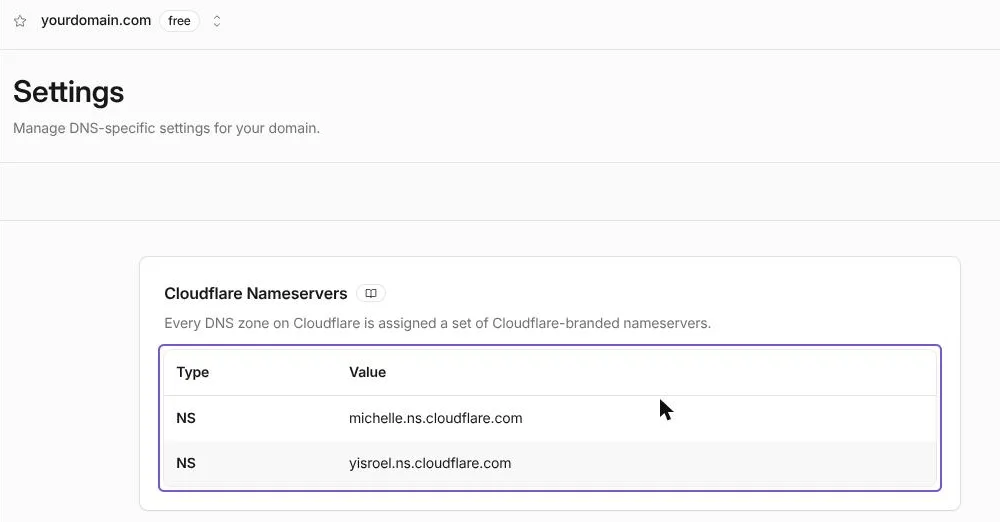
When Cloudflare shows the domain as active, open your Pages project, go to Custom domains and add the domain and www. Cloudflare creates the records itself.
Your own VPS with PanelAlpha
First point the domain at your VPS. Then ask your AI tool to add it. The certificate only works once the domain points at the VPS.
| Type | Name | Value |
|---|---|---|
| A | @ | The IP address of your VPS |
| A | www | The IP address of your VPS |
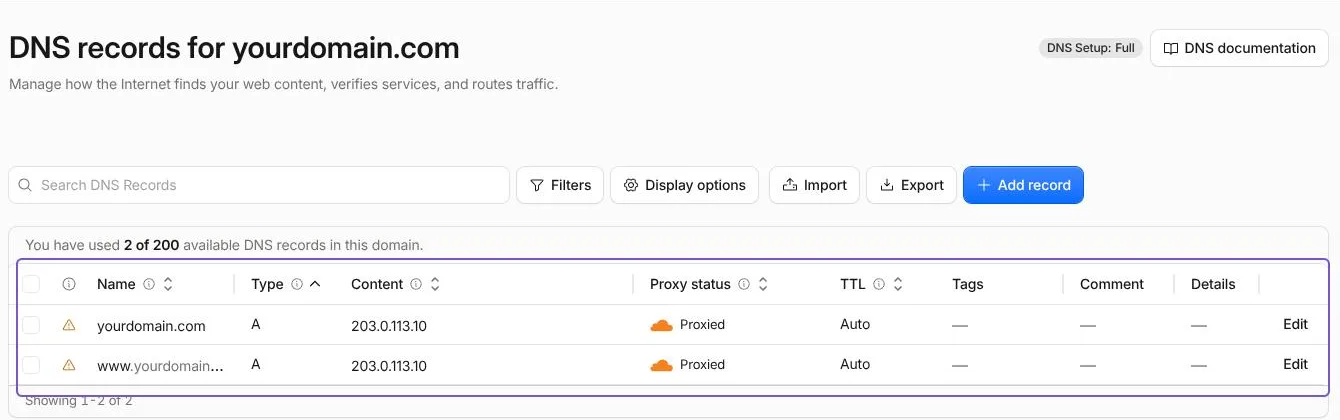
The IP address is in your hosting company dashboard. It is the address you used to log in to the VPS. When the domain points at the VPS, put it in this prompt and paste it into your AI tool:
Add the domains yourdomain.com and www.yourdomain.com to this project and request a Let's Encrypt certificate for them.
Check where the domain points
DNS changes take from a few minutes to a few hours. If the domain still shows the old address, DNS has not updated yet. Wait and try again later. Then open the domain in a private window. You should see the new app with a padlock and no warning.
Last: logins and Lovable
If people log in to the app, set the Site URL to the domain and add it to the redirect URLs. Otherwise login sends people back to Lovable. Remove the domain from Lovable once the new site loads. A domain you bought through Lovable stays in your workspace when you disconnect it from the project.
Custom domain not working after the move?
- The domain still opens the old app: DNS changes take from a few minutes to a few hours. Wait, then test in a private window.
- Login sends people back to Lovable: set the Site URL to the domain and add it to the redirect URLs.
- No padlock on a VPS: the certificate only works once the domain points at the VPS. Point it first, then request the certificate.
- The domain without www does not open on Cloudflare Pages: Cloudflare serves it only when Cloudflare also runs its DNS.
Sources
- Vercel docs: Adding a domain
- Cloudflare docs: Pages custom domains
- Lovable docs: Custom domains
- Lovable docs: Deploy and host outside Lovable