


 Join us on Discord













Lovable login sends people back to Lovable? Fix the redirect URLs
You moved a Lovable app to Vercel, Cloudflare or your own server, and login sends people back to the Lovable address. The app is fine. Its login settings still name the old address. You fix it in two fields.
Why it happens
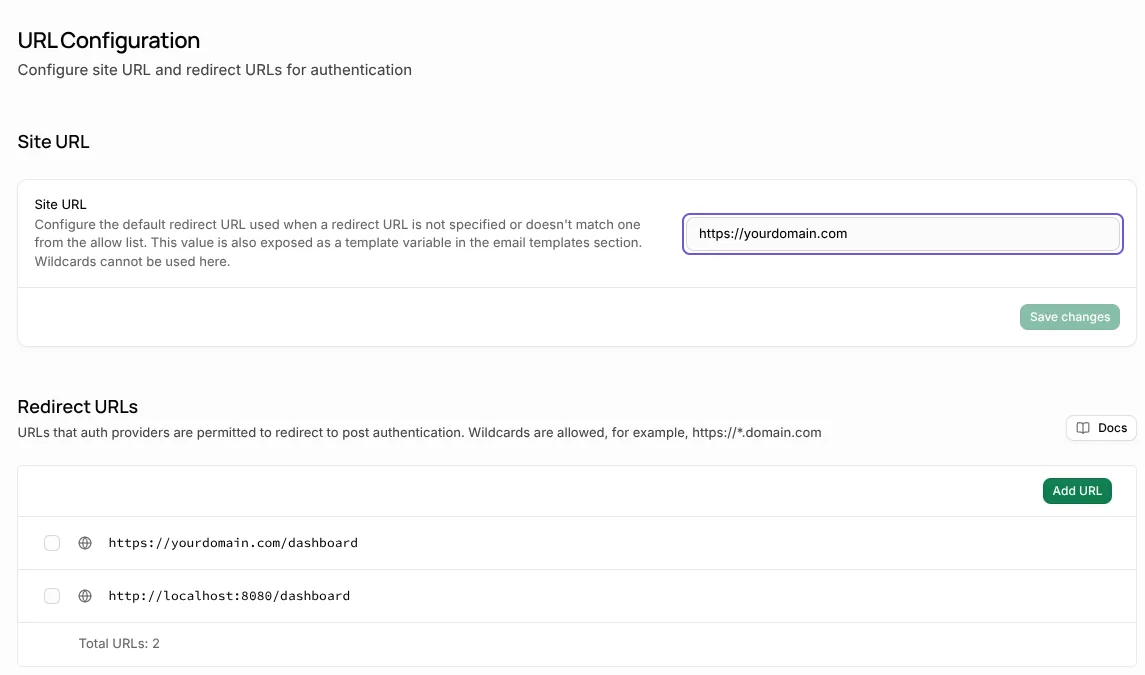
Logins in a Lovable app run on Supabase, in your own project or in Lovable Cloud, which is built on Supabase. After login Supabase sends people to the Site URL, or to an address on the Redirect URLs list. After a move both still point at Lovable.
What to set
| Setting | Value |
|---|---|
| Site URL | Your new address, for example https://yourdomain.com |
| Redirect URLs | Every page people can land on after login, for example https://yourdomain.com/** |
| Redirect URLs for tests | The address your host gave the project, for example https://your-app.vercel.app |
| Redirect URLs for local tests | The local address your app prints when it starts |
If the backend is your own Supabase project
In Supabase go to Authentication, URL Configuration. Set the Site URL to the new address and add it to the Redirect URLs.
If the backend is Lovable Cloud
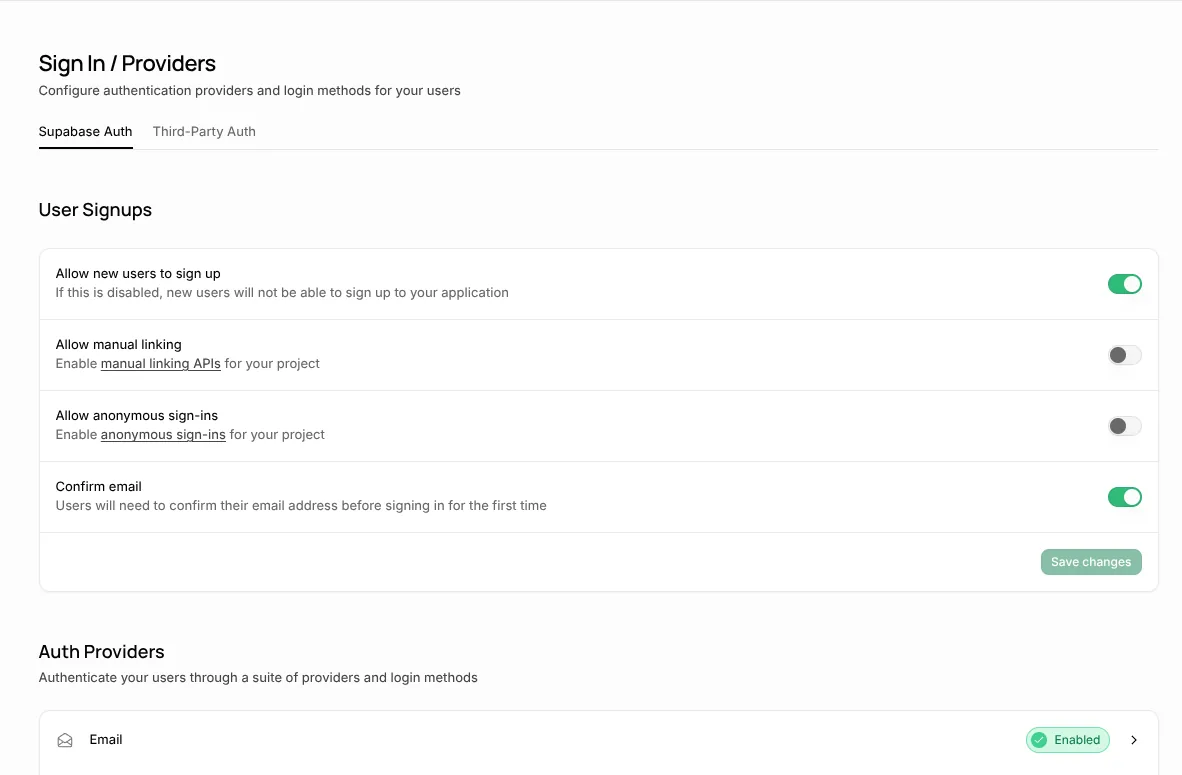
In Lovable open More, Cloud, Users and click Auth settings. Under Advanced, set the Site URL to the new address and add it to the Redirect URLs.

Google and GitHub logins
If people log in with Google or GitHub, add the new address at that provider too. With your own Google credentials, that is in Google Cloud Console.
If you also moved the backend to a new Supabase project, change the redirect URL at the provider to that new project.
Not sure which backend you have?
In your Lovable project open More, Cloud. If it shows your tables and users inside Lovable, it is Lovable Cloud. If it shows a Supabase project name, it is your own project.
Check it
Open the live app in a private window and log in. Reload the page, then log out and log in again. You should stay on the new address the whole time.
Sources
- Supabase docs: Redirect URLs
- Lovable docs: Lovable Cloud
- Lovable docs: Deploy and host outside Lovable