


 Join us on Discord













Run a Lovable project on your computer
Lovable runs your app in the browser. To run it on your own computer you need the code from GitHub, Node.js and two commands. These are the same steps the full guide uses, with or without an AI tool.
What you need
- A GitHub account. The free plan is enough.
- The GitHub CLI (gh), logged in. Lovable creates a private repository, and gh can copy it.
- Node.js, the LTS version.
1. Push the project to GitHub
Connect the Lovable project to GitHub and let Lovable create the repository. Every other step starts from that repo.

Open the new repository on GitHub. You should see package.json and a src folder in the file list.
2. Install the GitHub CLI and log in
On macOS, in Terminal. This needs Homebrew (brew.sh):
brew install gh
On Windows, in PowerShell. Then close the window and open a new one:
winget install --id GitHub.cli
On Ubuntu or Debian:
sudo apt install gh
Then open a new terminal and log in. The command asks a few questions. Choose GitHub.com, then HTTPS, and answer Yes when it asks to authenticate Git. Then log in with the browser. It shows a one-time code. Copy it and paste it in the browser.
gh auth login

3. Install Node.js
Your app needs Node.js. On macOS, in Terminal:
brew install node@24
brew link --force node@24
On Windows, in PowerShell:
winget install OpenJS.NodeJS.LTS
Or download the installer from nodejs.org. Then open a new terminal and check it. Both versions print one after the other.
node -v; npm -v

4. Copy the repository to your computer
Your repository is private, so copy it with the GitHub CLI. Open the repository on GitHub, click the green Code button and open the GitHub CLI tab. Copy the command, paste it in your terminal and run it. The new folder appears in the folder your terminal is in.

Then go into the new folder. Put the name of your repository in place of repository-name.
cd repository-name
5. Start the app
Install what the app needs and start it.
npm install; npm run dev

Open the local address it prints. You should see your app. Leave this window open. The app runs as long as it is open.
6. Make logins work on localhost
If people log in to your app, add the local address to the redirect URLs. Then links in emails, like a password reset, and logins with Google work on your computer too. Do not change the Site URL.
Own Supabase project: in Supabase go to Authentication, URL Configuration and add the local address to the Redirect URLs.
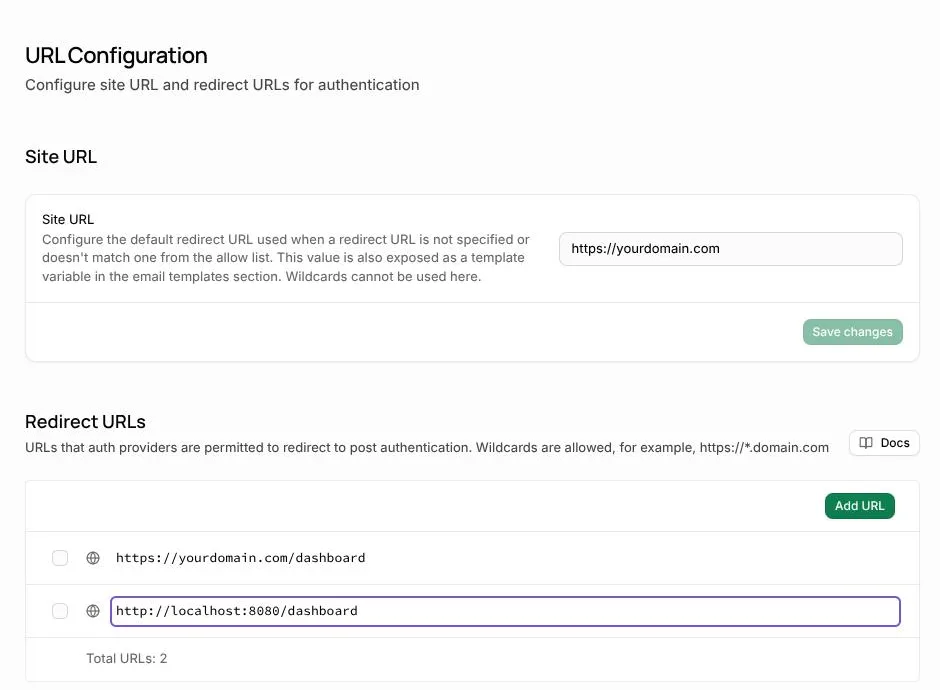
Lovable Cloud: in Lovable open More, Cloud, Users and click Auth settings. Under Advanced, add the local address to the Redirect URLs.

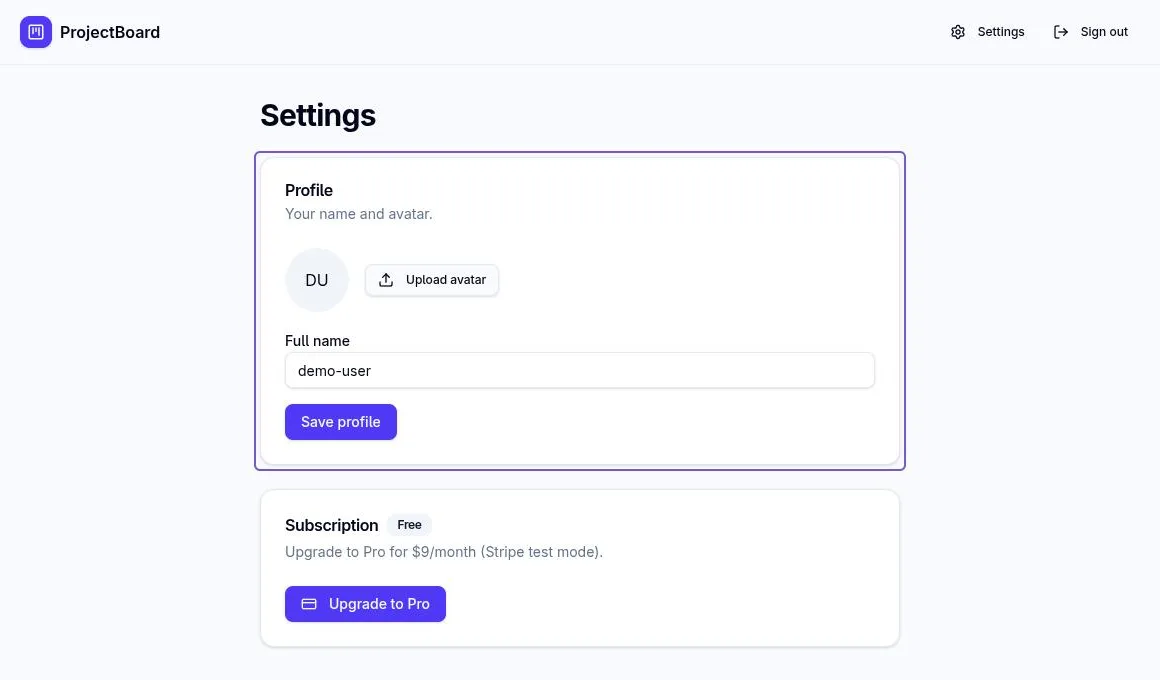
Then log in with a real account from the live app, not a new one. Reload the page, then log out and log in again. You should stay logged in after the reload.
Or let an AI tool do it
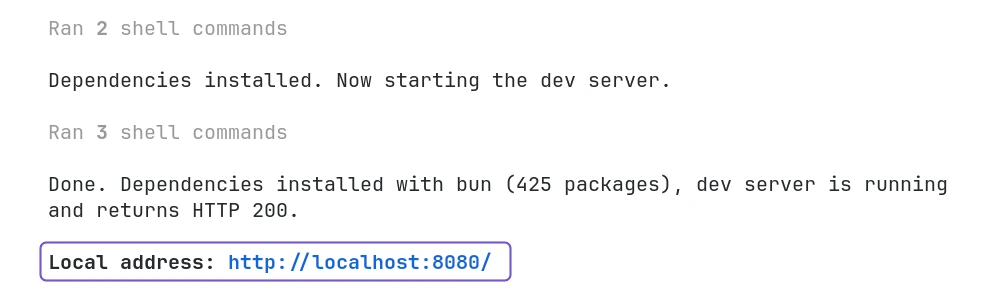
Claude Code, Codex and Cursor can do steps 4 and 5 for you, and install Node.js and the GitHub CLI if they are missing. In the project folder, paste this:
Install the dependencies of this project, start the dev server and give me the local address.
Sources
- Lovable docs: GitHub integration
- GitHub CLI manual: gh repo clone
- Node.js: Download
- Supabase docs: Redirect URLs