


 Join us on Discord













Export a Lovable project to GitHub
Lovable can push your project to a GitHub repository and keep it in sync. It works on every plan, also the free one (checked on 15 October 2026). This is the first step of every Lovable migration.
1. Open the GitHub connection in Lovable
Open the project in Lovable. Open the project settings, then Git, then GitHub.
GitLab and Bitbucket work too. On paid plans you can also export the code as a ZIP file (Download codebase, at the bottom of the file panel), but a ZIP does not stay in sync.

2. Authorize the Lovable GitHub app
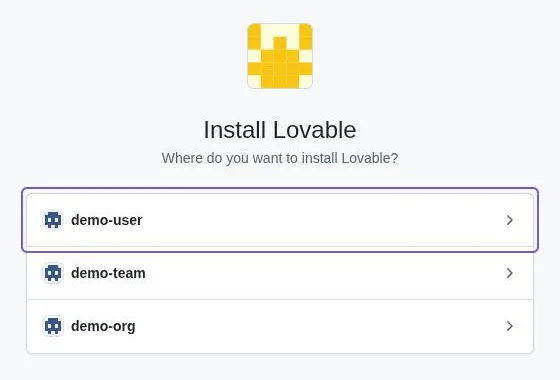
The first time, Lovable asks you to add your GitHub account (Add connection, in the workspace settings under Git, GitHub). GitHub asks you to install the Lovable app on your account or an organization. Choose where the repository should live. You can give it all repositories or only the ones you select.
3. Create the repository
Back in Lovable, click Connect. Lovable creates a new private repository, pushes the full project to its default branch and starts the two-way sync.
You cannot pick a repository you already have. Lovable always creates a new one. It stays private until you change that in the repository settings on GitHub.
4. Check what arrived
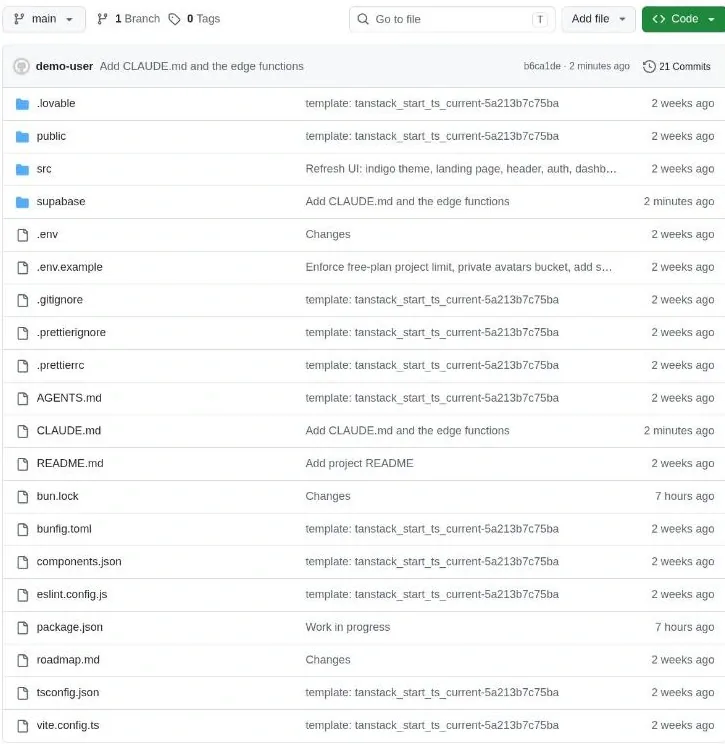
Open the repository on GitHub. You should see package.json and a src folder. Projects with a backend (Lovable Cloud or Supabase) also have a supabase folder with the migrations and edge functions.
Secrets you stored in Lovable are not in the repository. The .env file only holds public values, like the address and the public key of the backend.
Your data is not in the repository either: what is saved in the database, uploaded files and user accounts. Connectors and the key for Lovable AI also stay in Lovable. If your app has a backend, the database guide under Read next shows how to move it.
5. How the Lovable GitHub sync works
Changes you make in Lovable are pushed to GitHub. Commits you push to the default branch are pulled into Lovable. Work on one side at a time to avoid conflicts.
Lovable works on one branch: the default branch, unless you pick another one in the GitHub settings. If you disconnect, the repository stays on GitHub. If you connect again later, Lovable creates a new repository.
If both sides change the same thing, Lovable puts its changes on a separate branch called lovable-sync. Merge it on GitHub to bring them back.
Never force-push to the branch Lovable works on. It can replace work done in Lovable. Lovable saves a backup first, and the project owner can restore it in the Git settings.
You can rename the repository and the sync keeps working. If you delete it, the sync stops.
Want to edit in Cursor, Claude Code or Codex while Lovable stays connected? Follow Keep Lovable in sync when you edit in another tool.
Sources
- Lovable docs: GitHub integration
- Lovable docs: Git sync
- Lovable docs: Code mode
- Lovable docs: Deploy and host outside Lovable
Read next
- Move Lovable Cloud to your own Supabase project
- Keep Lovable in sync when you edit in another tool
- Moving from Lovable
- Lovable to Claude Code
- Lovable to Codex
- Lovable to Cursor
- Lovable to own VPS
- Run a Lovable project on your computer
- Is the Lovable .env file safe on GitHub?
- Remove the Edit with Lovable badge