


 Join us on Discord













Move Lovable Cloud to your own Supabase project
Lovable Cloud is the backend Lovable runs for your app. It is built on Supabase, so it can move to a Supabase project you own. There is no one-click move, but Lovable's docs list the steps. This article follows them in order.
Do you need to move it?
Only if you leave Lovable or want the backend in your own account. Cloud can stay where it is while you build in Claude Code, Codex or Cursor, and even while you host the app somewhere else.
What the export holds
| Part | In the Lovable export | What you do |
|---|---|---|
| Tables and data | Yes | Restore the export into the new project |
| User accounts | Yes, with password hashes | Nothing. Users keep their passwords and only sign in again |
| Files in storage | No | Download them and upload them to the new buckets |
| Edge functions | No, but the code is in your GitHub repo | Deploy them with the Supabase CLI |
| Secrets | No | Add them again in Supabase |
| Login providers and redirect URLs | No | Set them up again in Supabase |
| Lovable AI and connectors | No | Replace them with your own keys |
Before you start
- GitHub sync is on, so your repo has the supabase/migrations folder (drizzle/migrations in some projects).
- You have a Supabase account.
- You know when to switch. Anything people save in the old app after the export stays in Lovable Cloud.
- The database is under 15 GB. The export file can be up to 5 GB and you can make one export a day. Limits checked on 14 October 2026.
1. Create a Supabase project
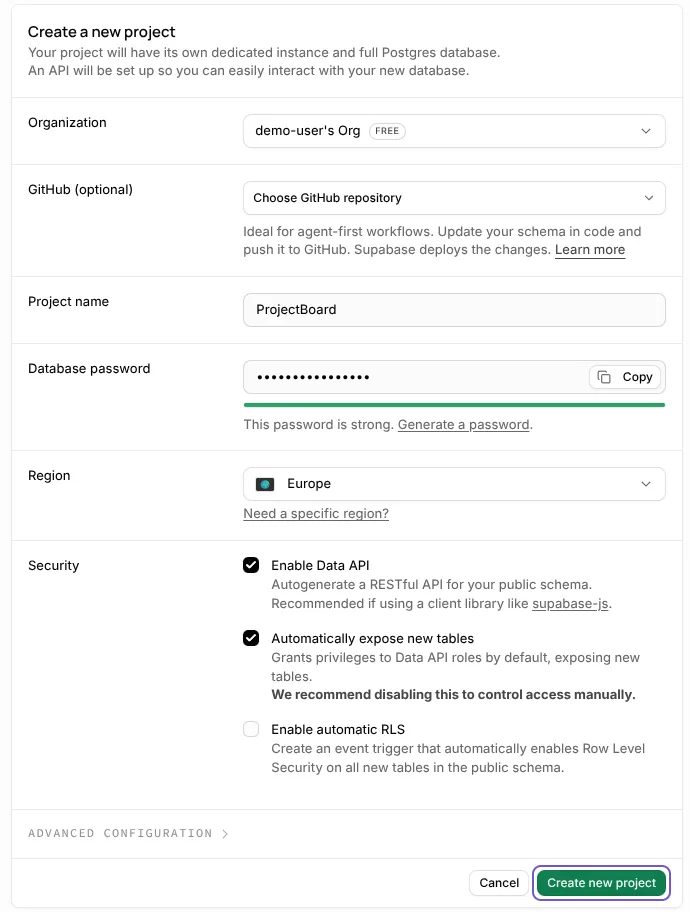
Create a new project at supabase.com in a region close to your users. Keep the database password. You need it later.
2. Create the tables
The files that describe your tables are in supabase/migrations in your repo. Apply them to the new project in order. The Supabase CLI does this when you log in, link the project and push the migrations. The project ref is the code after /project/ in the address of your project in the Supabase dashboard.
npx supabase login
npx supabase link --project-ref YOUR-PROJECT-REF
npx supabase db push
If your repo has drizzle/migrations instead, db push does not apply them. Run each file in the SQL editor of the new project, in the order listed in drizzle/migrations/meta/_journal.json.
3. Export the data from Lovable Cloud
In Lovable open More, Cloud, Overview, Advanced settings and click Export data. Click Export in the Database card, then Start export. Lovable emails you a download link, and the file also shows up under More, Cloud, Storage. It is a PostgreSQL backup archive, not a SQL file.

4. Restore the data in Supabase
If the download is a .zip file, extract it first. The archive is in PostgreSQL custom format with zstd compression, so you need the PostgreSQL client tools (pg_restore and psql) version 16 or newer, built with zstd.
The tables already exist from step 2, so load only the data. The first command lists what is in the archive. The second writes the data of your tables and your users to a file. The third loads it into the new project with triggers turned off, so a trigger cannot add rows twice. The connection string is in the Supabase dashboard under Connect.
pg_restore --list your-export.backup
pg_restore --data-only --no-owner --schema=public --schema=auth -f data.sql your-export.backup
psql "YOUR-CONNECTION-STRING" -c "SET session_replication_role = replica" -f data.sql
psql prints an error for every table it could not load. If one of them is a table of your app, its data is not in the new project yet. Open a few tables in the Table Editor and check that your rows are there.
5. Set up logins again
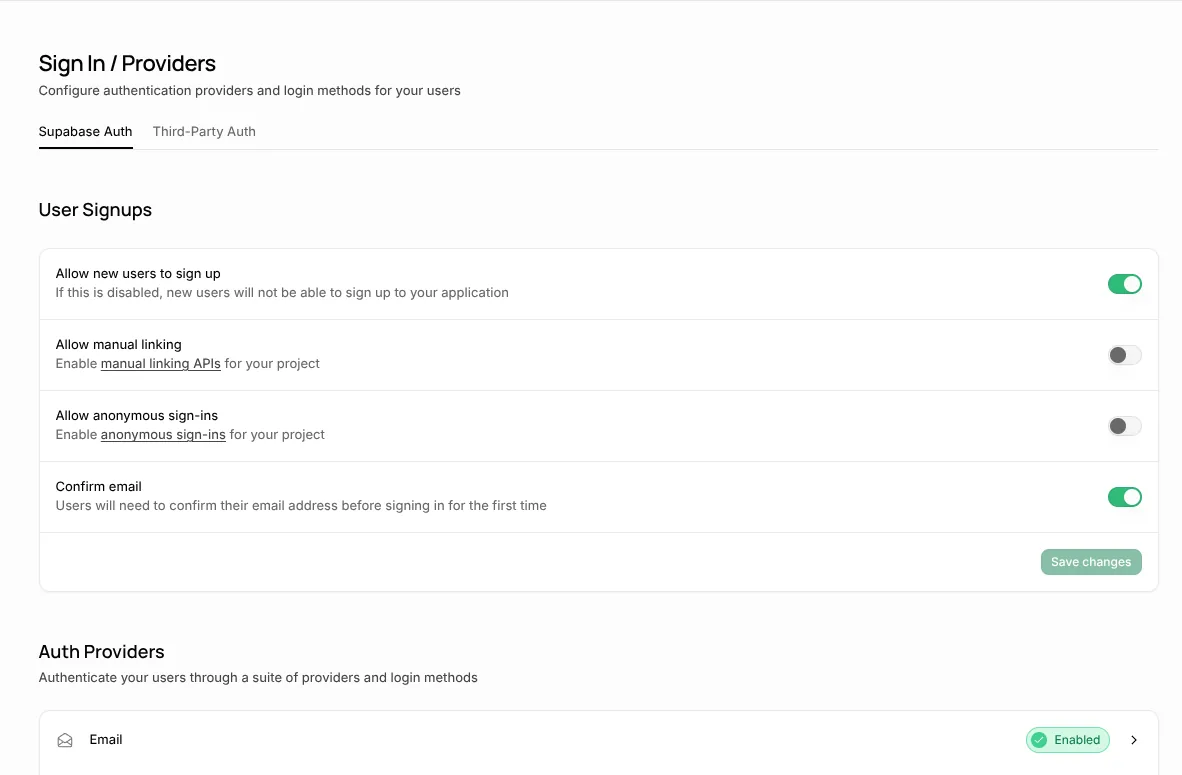
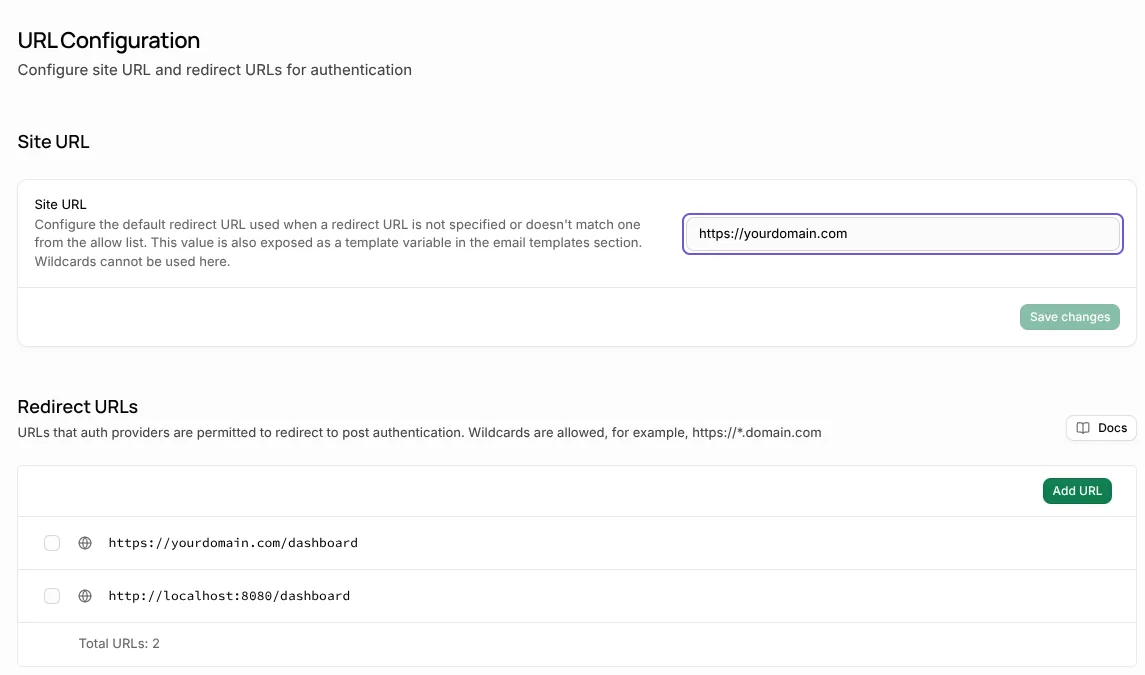
Turn on the same sign-in providers as before and add the address of your app to the redirect URLs. Without the redirect URLs, logins fail after the move.
If people sign in with Google or another provider, also change the redirect URL in that provider's settings to your new Supabase project.
6. Copy the files
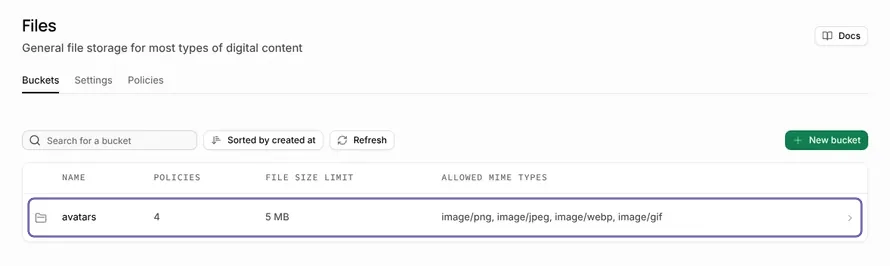
The buckets and their rules come with the migrations from step 2. Check that the buckets exist, then download the files from the old buckets (in Lovable under More, Cloud, Storage) and upload them to the new ones.
7. Secrets, edge functions and scheduled jobs
Add every secret again in the Supabase dashboard under Edge Functions, Secrets, with the same names. Then deploy the functions from your repo.
npx supabase functions deploy
Then check your scheduled jobs. The migrations from step 2 can create some of them. Compare the jobs in the new project with the ones in Lovable Cloud and create the missing ones again with cron.schedule in the SQL editor. A job that calls a function needs the address and keys of the new project. Do not let the same job run on both backends at once.
If the app uses the AI built into Lovable, its functions call the Lovable AI gateway with a key that only works there. A new key is not enough. Change those functions so they call your AI provider's API directly, with your own key as a secret. Your AI tool can do this for you.
8. Test on a separate deployment
Do not change the .env file yet. With GitHub sync on, Lovable and your host build from it, so a change there switches the live app at once. Test on a separate deployment first, like a preview on your new host. Set VITE_SUPABASE_URL, VITE_SUPABASE_PUBLISHABLE_KEY and VITE_SUPABASE_PROJECT_ID there as environment variables, with the values of your new project. Apps made since May 2026 also have the same three names without VITE_. Set those too.
Values that start with VITE_ are fixed when the app is built. Build and deploy the test again after the change.
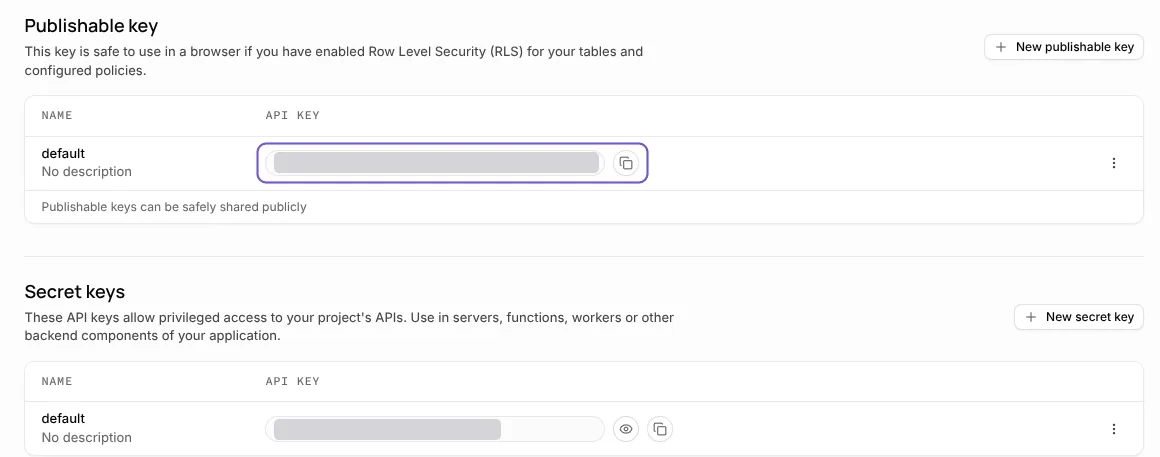
On the test deployment, log in, open a page with saved data and upload a file.
9. Switch
If people use the app every day, export the data again right before you switch, so nothing saved in the meantime is lost. Before you restore it, empty the tables of the first restore, or restore into a fresh Supabase project. Restoring over the old rows gives errors and duplicate rows.
Then point the app at the new project. The .env file in your repo still points at Lovable Cloud. Change the same values there, and the project ID in supabase/config.toml. From this change, the live app uses the new project. Build and deploy the app again.
Sources
- Lovable docs: Lovable Cloud
- Lovable docs: Advanced settings and Export data
- Lovable docs: Deploy and host outside Lovable