


 Join us on Discord













Move Lovable storage files to your own Supabase project
Export data in Lovable copies your database and your users. It leaves out the files people uploaded, like avatars, images and PDFs. You copy those yourself. Keep the bucket names and the folder paths the same, or the app shows broken images.
1. Create the same buckets
In your new Supabase project open Storage and click New bucket. Use the same name as in Lovable and the same setting for public or private. Buckets are private in both by default.
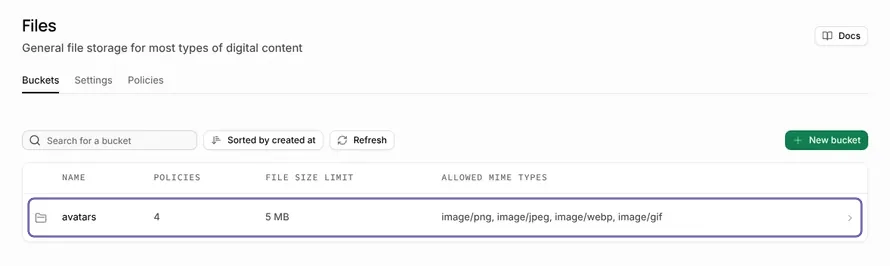
A bucket also needs its rules: who can upload, read and delete. Without them, Supabase blocks every upload. If your project has a supabase folder, the rules may already be in its migrations. Ask your AI tool:
Look at the migrations in the supabase folder. Tell me which storage buckets and which policies on storage.objects they create. If a bucket the app uses has no policy there, write one that matches how the app uses it.
2. Download the files from Lovable
In Lovable open More, Cloud, Storage and open a bucket. Select the files and download them. Several files come as one zip archive. Do this for every bucket.
3. Upload them to the new buckets
For a few files, open the bucket in Supabase Storage and upload them in the same folders as in Lovable. Apps often keep the files of each user in a folder named after the user ID. That folder name must stay the same.
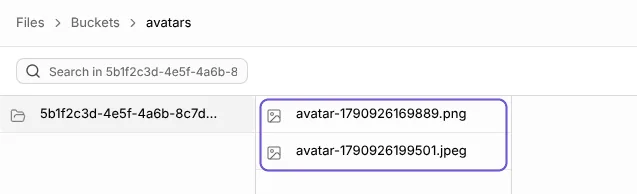
For many files, unzip the archive and let your AI tool upload the folder. Paste this into Claude Code, Codex or Cursor in the project folder:
Upload every file in {{path to the unzipped folder}} to the bucket {{bucket name}} of my new Supabase project. Keep the folder paths the same. Read the secret key from an environment variable I set in the terminal, never from a file in the repository. Show me the plan before you run it.4. Check the app
Point the app at the new project first. Then open a page that shows an uploaded file and upload one more. You should see the files you copied, and the new one right after the upload.
If a table in your database saves the full address of each file, that address still names the old project. Ask your AI tool to find those columns and change the addresses to the new project.
Before you remove Lovable Cloud
Remove Lovable Cloud deletes the backend for good, with every file in it. Do it only after the app works with the new storage, if at all. Until then the old files stay where they are.
Sources
- Lovable docs: Storage
- Lovable docs: Advanced settings and Export data
- Supabase docs: Creating buckets
- Supabase docs: Storage access control
- Supabase docs: File limits