


 Join us on Discord














Move from Bolt to Claude Code, step by step
Sync your Bolt project with your own GitHub repository and continue building with Claude Code. The backend stays where it is. The steps follow your app: keep Bolt hosting, or move the app to Vercel or your own server.
What you'll do during the migration
Your migration is split into four stages, with step-by-step instructions, detailed explanations and practical examples.
Your setup
Tell us what your app uses and where you want it to run.
Preparation
Get GitHub, Node.js and Claude Code ready, plus anything else your app needs.
Migration
Follow 7 to 14 steps, depending on your app. Each shows you what to do and how to check it worked.
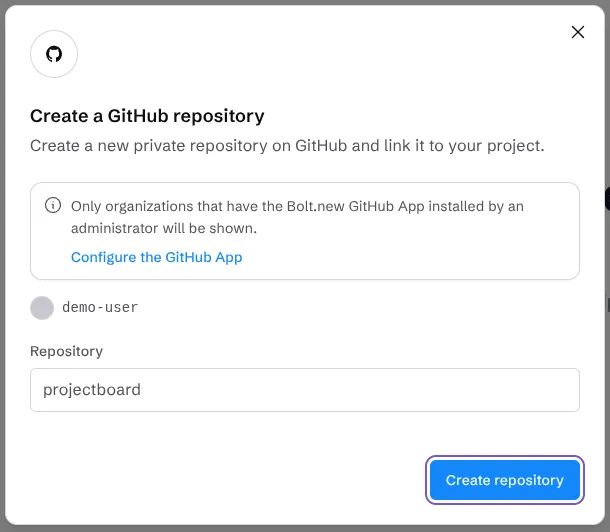
- Push the project to GitHubConnect the Bolt project to GitHub and let Bolt create a private repository.
- Get your code onto your computerCopy the private repository to a folder on your computer.
- Open the project in the Claude appOpen the project folder in the Code tab of the Claude app.
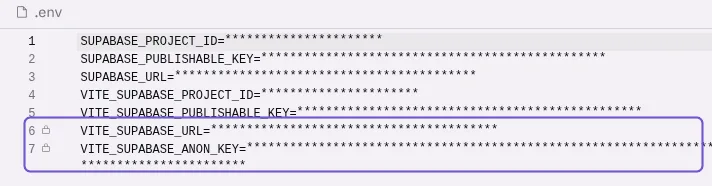
- Add the backend settingsCheck that the .env file has the address and the public key of the backend.
- Run your app on your computerInstall what the app needs and start it on your computer.
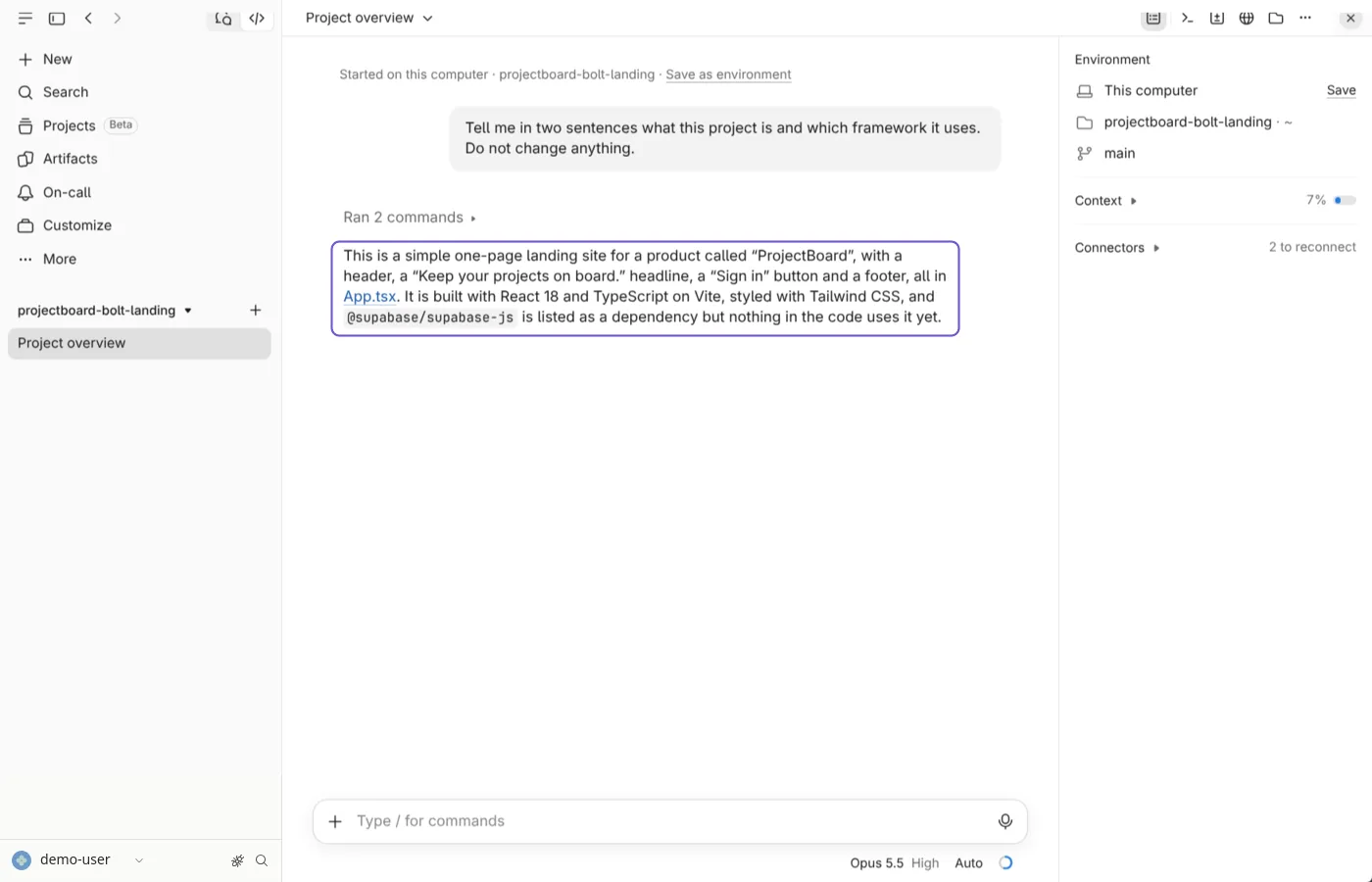
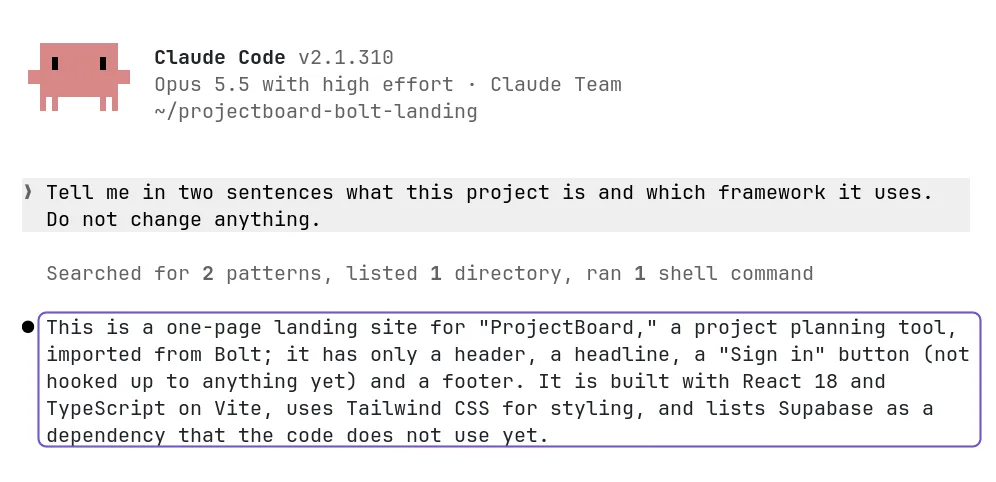
- Open the project in Claude CodeStart Claude Code in the project folder in a terminal.
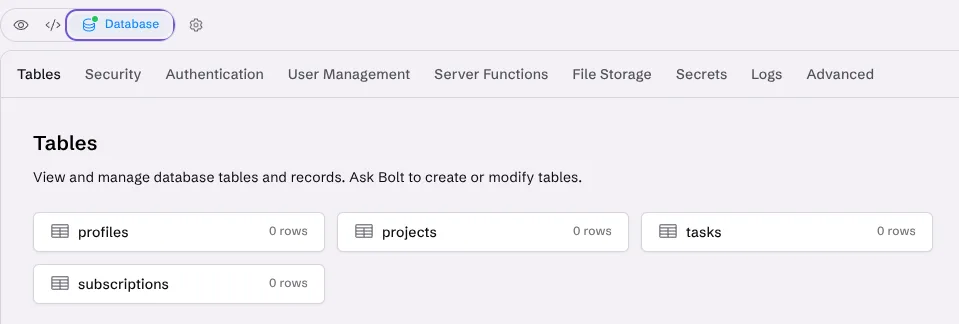
- Check where your backend runsFind out if the app uses Bolt Cloud or its own Supabase project.
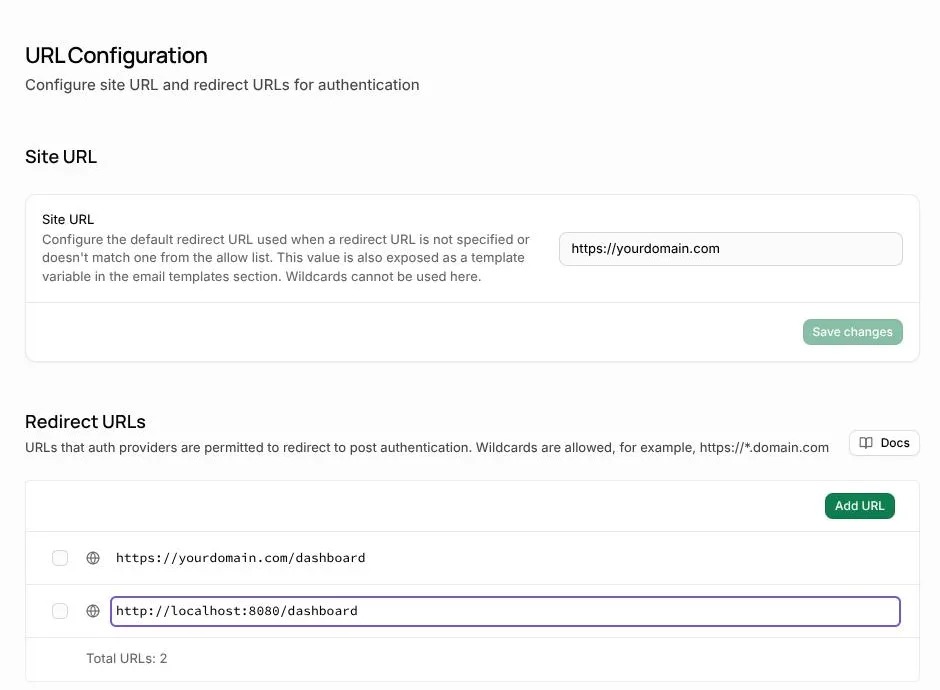
- Make logins work on your computerAdd your local address to the login settings, so links in login emails work on your computer.
- Keep secret keys out of .envCheck that the .env file holds only public values.
- Tell Claude Code about your projectClaude Code writes a CLAUDE.md, a short note it reads at the start of every session.
- Send your changes to GitHubPush your changes so the new host builds the latest code.
- Deploy to VercelImport the GitHub repository in Vercel, add the values from .env and deploy it.
- Run your app on your own serverClaude Code deploys the app on your VPS through PanelAlpha Engine, with HTTPS.
- Deploy every push automaticallyAdd a GitHub webhook so every push deploys the app on your VPS.
- Make logins work on your new addressAdd the new address to the login settings, so logins do not send people back to Bolt.
- Point your domain to the new hostChange your domain's DNS records so the domain opens the new host.
- Keep your code in sync with BoltPull before you work and push when you finish, so Bolt and Claude Code stay in sync.
- Publish your changes from BoltPublish the app again in Bolt, so the live app gets your changes.
- Disconnect BoltTurn off the GitHub sync in Bolt so it cannot overwrite your work.
Final check
Test everything before switching. Your Bolt app stays online until you're ready.
What the steps look like

What you can and can't migrate from Bolt
Comes with your code
- Your frontend code
- Images and other static files
You'll set this up
- The address and the public key of the backend in a .env file
- A CLAUDE.md file to help Claude Code understand your project
Stays with Bolt
- The Bolt editor and AI chat
- The Bolt Cloud backend
- Bolt hosting (your app stays online until you move it)
Common problems
The app loads but cannot reach the backend
Fix: The .env file is missing or a value is empty. Add the address and the public key of the backend, then restart the dev server.
Bolt overwrites your changes
Fix: Bolt and Claude Code changed the code at the same time. Bolt keeps its version. Pull before each session, push after, and do not edit in both at once.
The live app does not show your change
Fix: Bolt got the change from GitHub, but the live app updates only when you publish again in Bolt.
Questions
Do I need to code?
No. In the Claude desktop app you only paste prompts. In the terminal you also run a few commands. Claude Code writes the code.
Does the app go offline during the move?
No. It keeps running on Bolt until you move your domain or turn it off.
Can I keep using Bolt?
Yes. Bolt and Claude Code edit the same code through GitHub. Bolt picks up your pushes on its own.
Can I move the Bolt Cloud backend out of Bolt?
Not yet. Bolt says there is no supported way to move a Bolt Cloud database to Supabase. That is why the backend stays in Bolt in this guide, also when the app moves to a new host.
How many steps will I have?
It depends on your app. A site that stays on Bolt has 7. An app that moves to a new host with logins and a domain has up to 14. Your plan only shows the steps that apply to you.
Is there a free plan for Claude Code?
No. Claude Code needs a Claude plan or API credits. Pro is $20 a month or $17 billed yearly. Prices checked on 14 October 2026.
Articles about Bolt
All guides
 Bolt to a repo you ownvs
 Bolt Cloud or your own Supabase
 Your Bolt app, built by Vercel
More articles for this move are coming
Tell us what you are stuck on and we will write it up next.
Send feedback