


 Join us on Discord














Export a Bolt project to GitHub
Bolt (bolt.new) can push your project to a private GitHub repository and keep it in sync both ways. That is the way out of Bolt for your code. The Bolt Cloud backend and your secrets stay in Bolt.
1. Connect your GitHub account
You do this once. Open a Bolt project and click the GitHub icon in the top right corner. Click Log in to GitHub, then Authorize, then Install the GitHub App. Pick All repositories or Only select repositories and click Install & Authorize.
It needs a personal GitHub account. A GitHub organization works differently.
2. Create the repository
Click the GitHub icon again, type a name for the repository and click Create repository, then Start building. Bolt creates a private repository on the main branch and pushes the code to it.
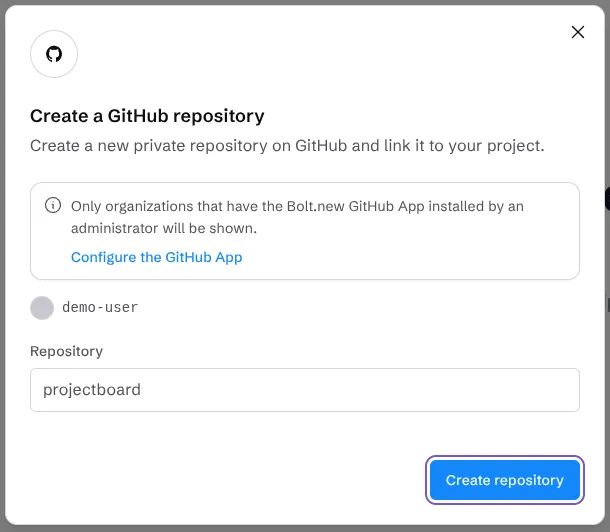
Open the new repository on GitHub. You should see package.json and a src folder in the file list.
How the sync works
- Bolt to GitHub: Bolt commits your changes on its own each time a change does not break the project.
- GitHub to Bolt: Bolt checks GitHub about every 30 seconds and pulls in changes made somewhere else.
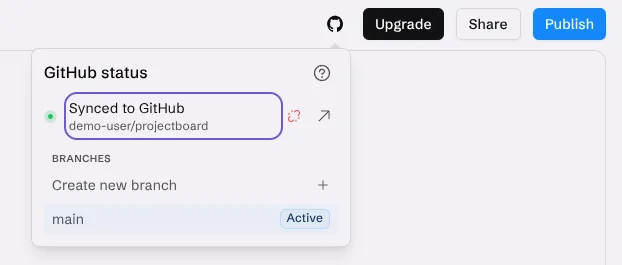
- Status: click the GitHub icon. It shows the repository, the branch and "Synced to GitHub".
- Branches: create and switch them from the GitHub icon. Bolt cannot merge them. Do that on GitHub.
One rule matters when you also edit somewhere else, for example in Claude Code. If Bolt and GitHub change the code at nearly the same time, Bolt keeps its own version and overwrites the one on GitHub. Pull before you start, push when you finish and do not edit in both at once.
In our test in November 2026 a push from a computer reached the Bolt project in under a minute, and Bolt wrote "I've detected changes that were made externally". When we imported a repository we already had, Bolt synced to a branch named bolt and left main alone.
Start from a repository you have
It also works the other way. On the Bolt homepage, click GitHub below the chat box and log in. Pick a repository, or click Import from URL and paste its address. Then click Choose this repository. Bolt opens it as a new project.
What stays in Bolt
| Part | Goes to GitHub? | What to do |
|---|---|---|
| Code | Yes | Nothing. It syncs both ways |
| Secrets | No | Keep a list of the names. Add the values again on a new host |
| Bolt Cloud database | No | Export the row data of each table as a backup |
| Users and logins in Bolt Cloud | No | They stay in Bolt Cloud |
| Files in Bolt Cloud storage | No | They stay in Bolt Cloud |
| Bolt hosting | No | Keep it, or deploy the repository to a new host |
Bolt says there is no supported way to move an existing Bolt Cloud database to Supabase. To use Supabase, you pick it when you start a new project. So when your app moves to a new host, it keeps using its Bolt Cloud backend. In November 2026 the Database panel of a Bolt Cloud project had a new option under Advanced: "Claim in Supabase: Move this database into your own Supabase account."
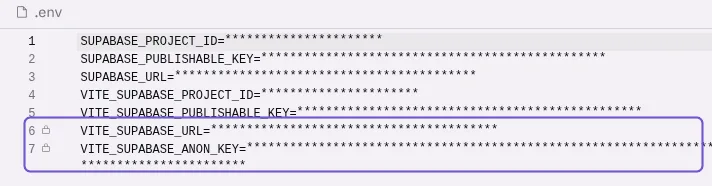
The .env file does not go to GitHub. Bolt Cloud keeps the backend address and the public key there, as VITE_SUPABASE_URL and VITE_SUPABASE_ANON_KEY, marked with a lock. The editor hides the values, but copying a locked line copies the real value. Copy the two lines into a .env file on your computer.
Turn the sync off
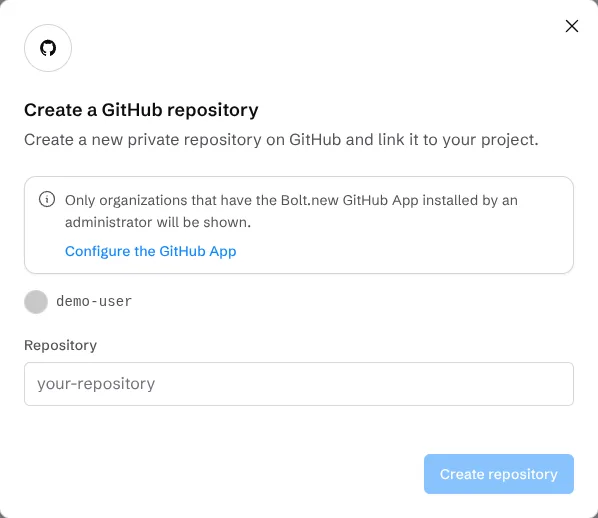
In the GitHub panel of the project, click Disconnect. After that the GitHub icon opens Create a GitHub repository again. The repository and its branches stay on GitHub.
Next: edit it on your computer
With the code on GitHub, the step-by-step guides take it from there. Bolt to Claude Code keeps the app on Bolt and lets you edit it on your computer. Bolt to Vercel and Bolt to own VPS move the hosting too.