


 Join us on Discord














Export a v0 project to GitHub
v0 can push your project to a private GitHub repository. From then on the repository holds the code, not v0. v0 works on a branch for each chat and opens pull requests, so syncing works differently than in other app builders.
1. Connect the project to GitHub
Open the project menu (...) and click Settings, then GitHub. Click Connect. Under Git Scope, pick the GitHub account or organization that should own the repository. Type a Repository Name and click Create Repository. v0 creates a private repository and pushes the current code to it.
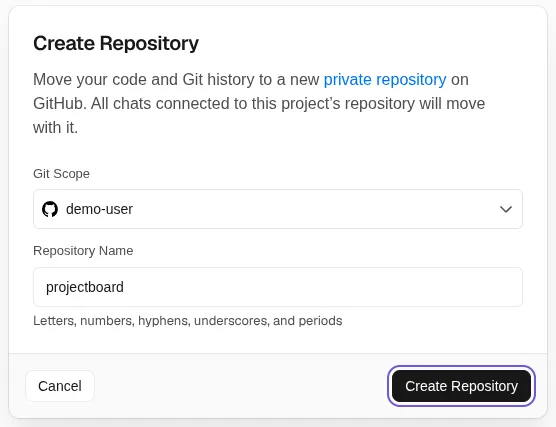
Already have the code on GitHub? Use Import from GitHub instead. It opens the repository you have and does not make a copy.
How v0 uses branches
- Default branch: the default branch of the repository on GitHub, usually main.
- Base branch: the branch a chat starts from, and where its pull request goes.
- Working branch: the branch v0 creates for a chat when it has a change to push.
- Production branch: the branch the linked Vercel project deploys to production.
v0 asks before it pushes a change to the working branch. A chat does not see later pushes to its base branch, for example the ones you pushed from Claude Code. Start a new chat for those. So merge the pull requests of v0 on GitHub before you work on main somewhere else. Keep a v0 project in sync with GitHub has the details from our tests.
2. Copy the environment variables
Your keys are not in the repository. They are in the Vercel project v0 published to. The Vercel CLI links the folder to that project and copies its Development variables into a file. Next.js reads .env.local on your computer.
npm install -g vercel
vercel login
vercel link
vercel env pull .env.local
vercel link alone writes only a VERCEL_OIDC_TOKEN to .env.local. The variables of the app come with vercel env pull, and only the ones set for Development that are not Sensitive. Get the environment variables of a v0 app covers an empty pull and AI calls on localhost.
Run vercel env pull again when a variable changes on Vercel. It merges into the file you have and keeps the names that exist only on your computer.
If v0 never published the app, there is no Vercel project yet. Then copy the variables by hand from the project menu, Settings, Environment Variables.
3. Run the app on your computer
Copy the repository to your computer, install what the app needs and start it. Next.js prints its local address, usually http://localhost:3000.
The Next.js project v0 made in our test came with a pnpm-lock.yaml, so we installed it with pnpm. npx runs pnpm without installing it first.
npx pnpm install
npx next dev
Why not the zip download
v0 can also give you a zip file of the code. One user on the Vercel community forum reported that the zip had older versions of most files. GitHub keeps syncing and has the latest code.
What lives where
| Part | Where it is after the export |
|---|---|
| Code | Your GitHub repository |
| Environment variables | The Vercel project, and .env.local on your computer |
| Database | Your account at Neon, Supabase or Upstash, added through Vercel |
| Hosting | Vercel, deployed from the production branch |
| Chat history | v0 |
Next: edit it on your computer
The step-by-step guides take it from there. v0 to Claude Code keeps the app on Vercel and lets you edit it on your computer. v0 to own VPS moves the app to your own server, and the database stays where it is.
Sources
- v0 docs: GitHub
- v0 docs: Databases
- Vercel docs: vercel env
- Vercel Community: Download zip is not up to date with the latest version